


If you’ve ever sat at the bench with a calculator in one hand, a spreadsheet open on the laptop, and a rapidly cooling beaker in front of you (we’ve all done it, no judgement), this workbook is the thing you wish you’d had three batches ago. It’s the tool I built for myself first (because the existing options were either eye-wateringly expensive, designed for industrial production, or built by people who clearly hadn’t done much actual formulating at the bench), and I’ve been asked to share it a few times, so I decided to tidy it up a bit and let it out into the world.
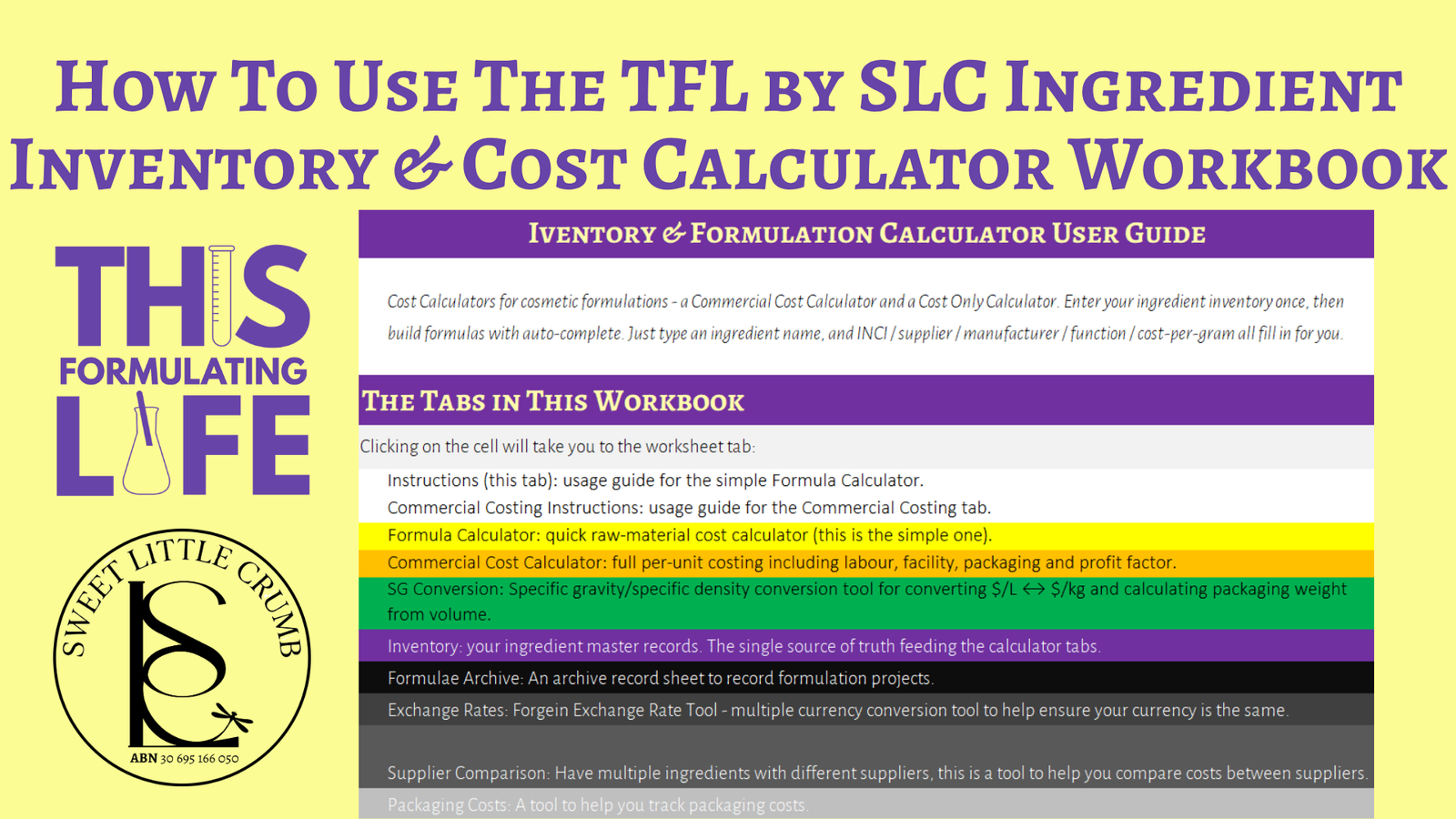
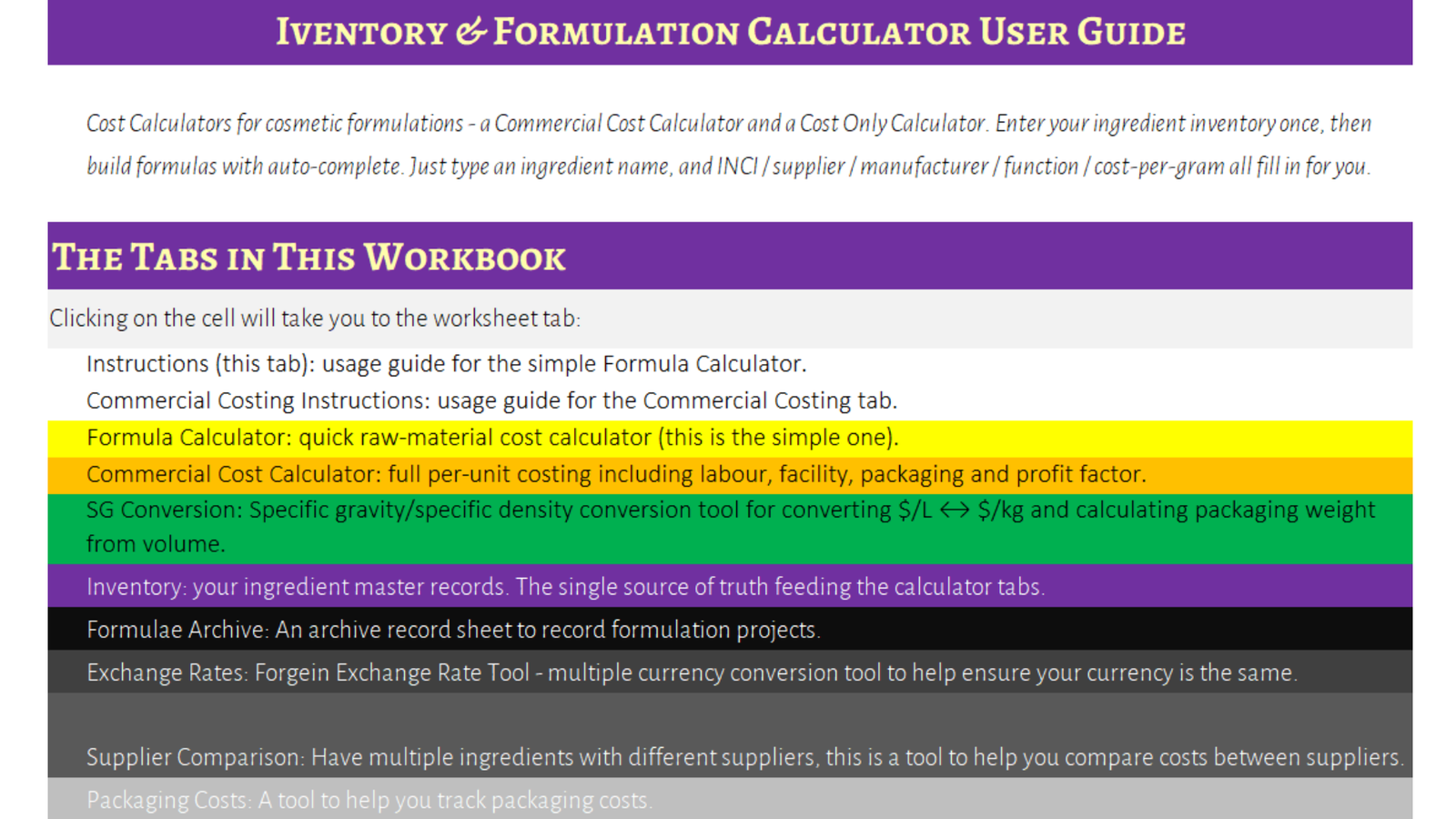
The workbook bundles three things that belong together (because trying to cost a formula without a proper inventory behind it is how you end up guessing, and guessing is how indie brands quietly haemorrhage money for two years before working out why nothing is actually profitable, I did this myself – we lost money on SLC when we were a brand back in the mid 00s because we didn’t calculate things correctly).
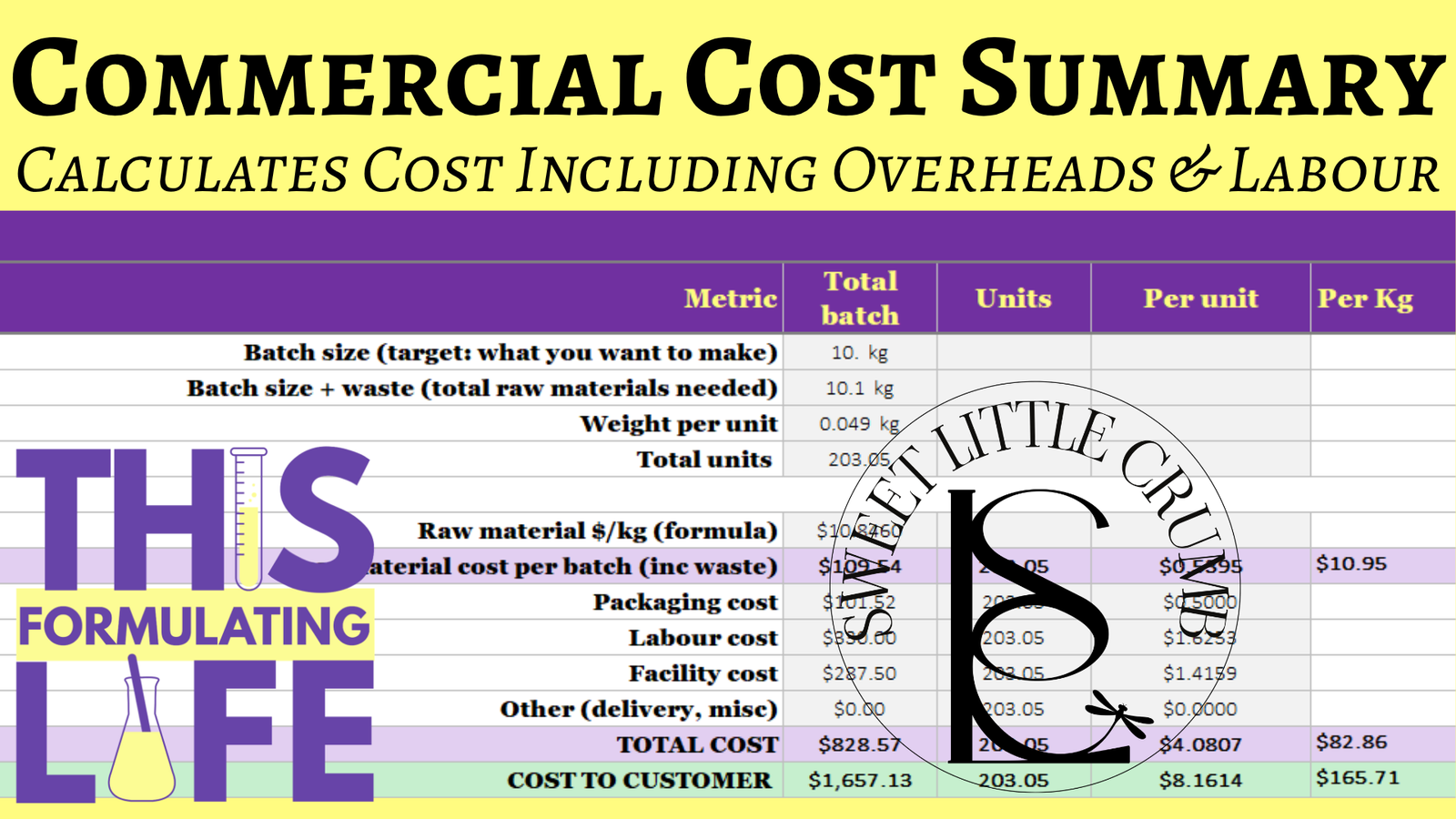
There are two versions of this workbook, they do the same thing, but Version 2 is designed for brands who have more than one staff member. It separates the labour and facility costs, and also has a costing summary tab, an extra specific gravity tool and it has the ability to automatically change the currency across the whole workbook. Both versions can change the currency, it’s just that version 2 does it automatically. I am still finalising Version 2, and it will be available next week as I need to check it in some other spreadsheet apps.

There’s a VIDEO TUTORIAL: https://youtu.be/7tehskC4abg

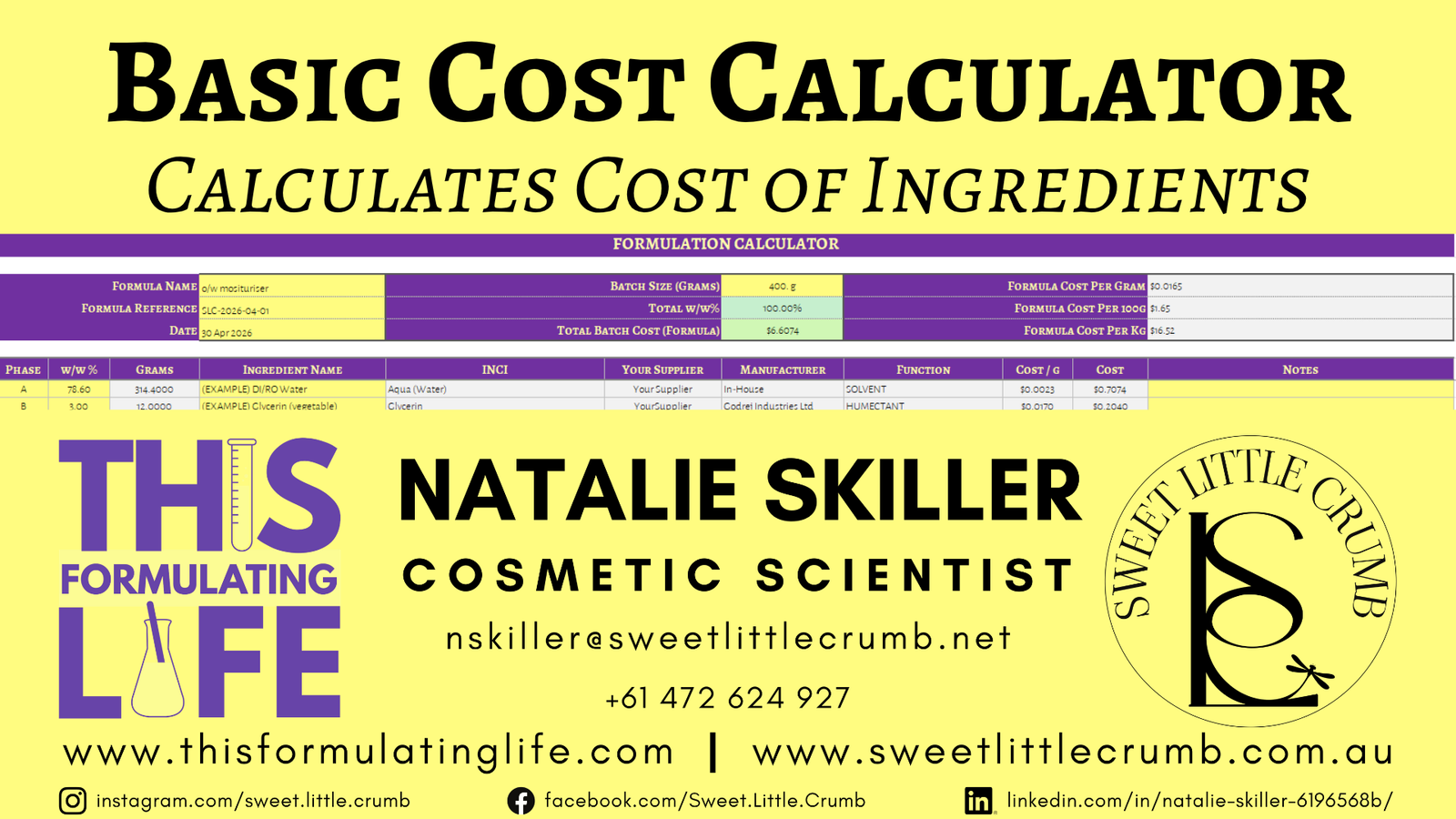
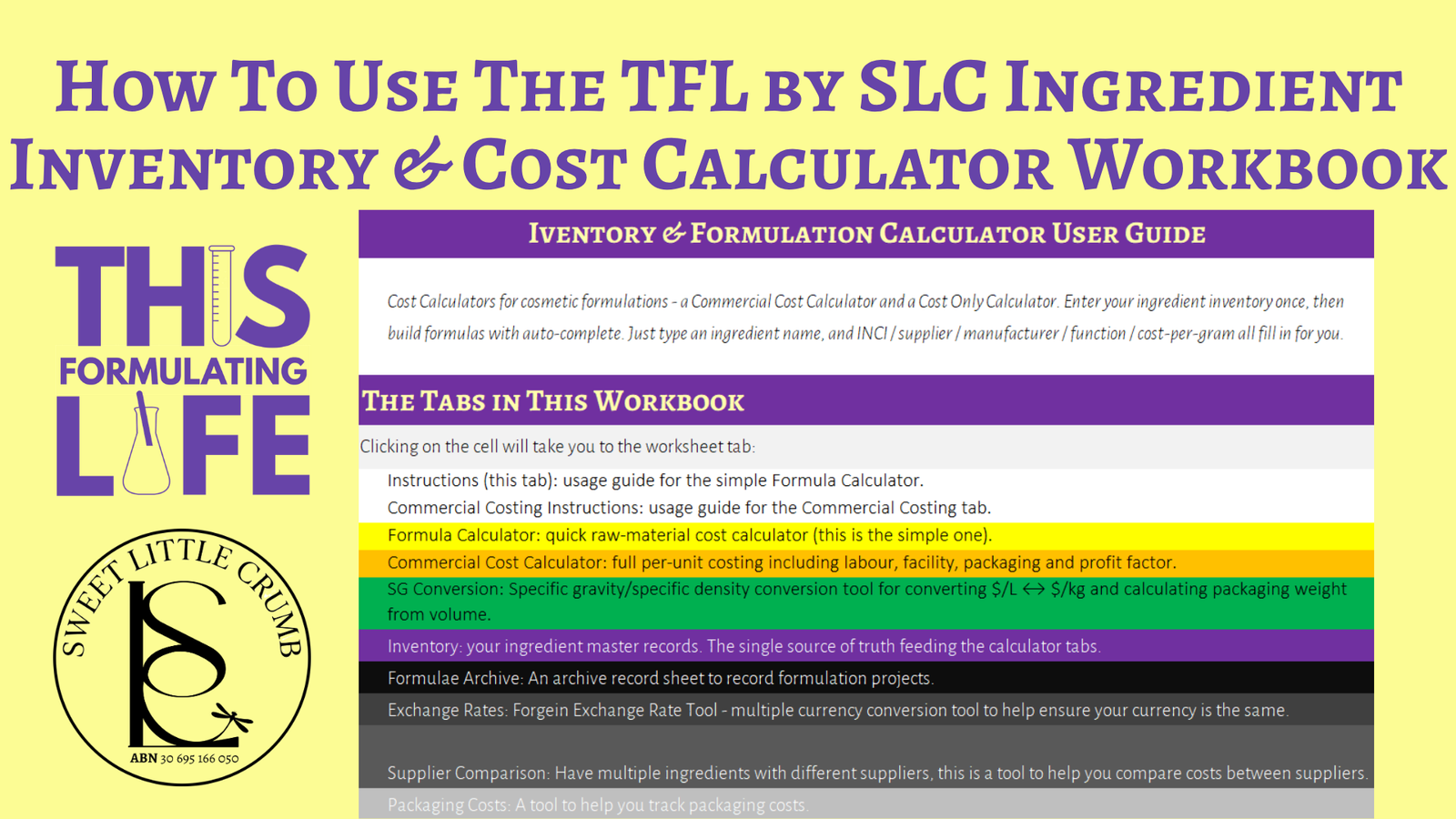
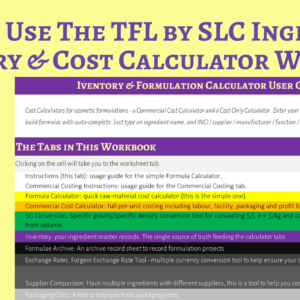
Ingredient Cost Calculator
This is the everyday tab, the one you’ll have open while you’re actually building a formula. You type the ingredient name (autocomplete picks it up from your inventory, so you don’t need to remember whether you’ve filed something as “Olivem 1000” or “Cetearyl Olivate / Sorbitan Olivate”), enter your percentages, and the workbook does the rest (grams per phase, cost per phase, cost per batch, cost per gram of finished product). It pulls INCI, supplier, manufacturer, function, and cost-per-gram straight from your inventory record, so the formula you save is also a fully traceable document (which your future self will thank you for the next time a client asks, “what’s the manufacturer of the niacinamide in in the most recent formula iteration”).
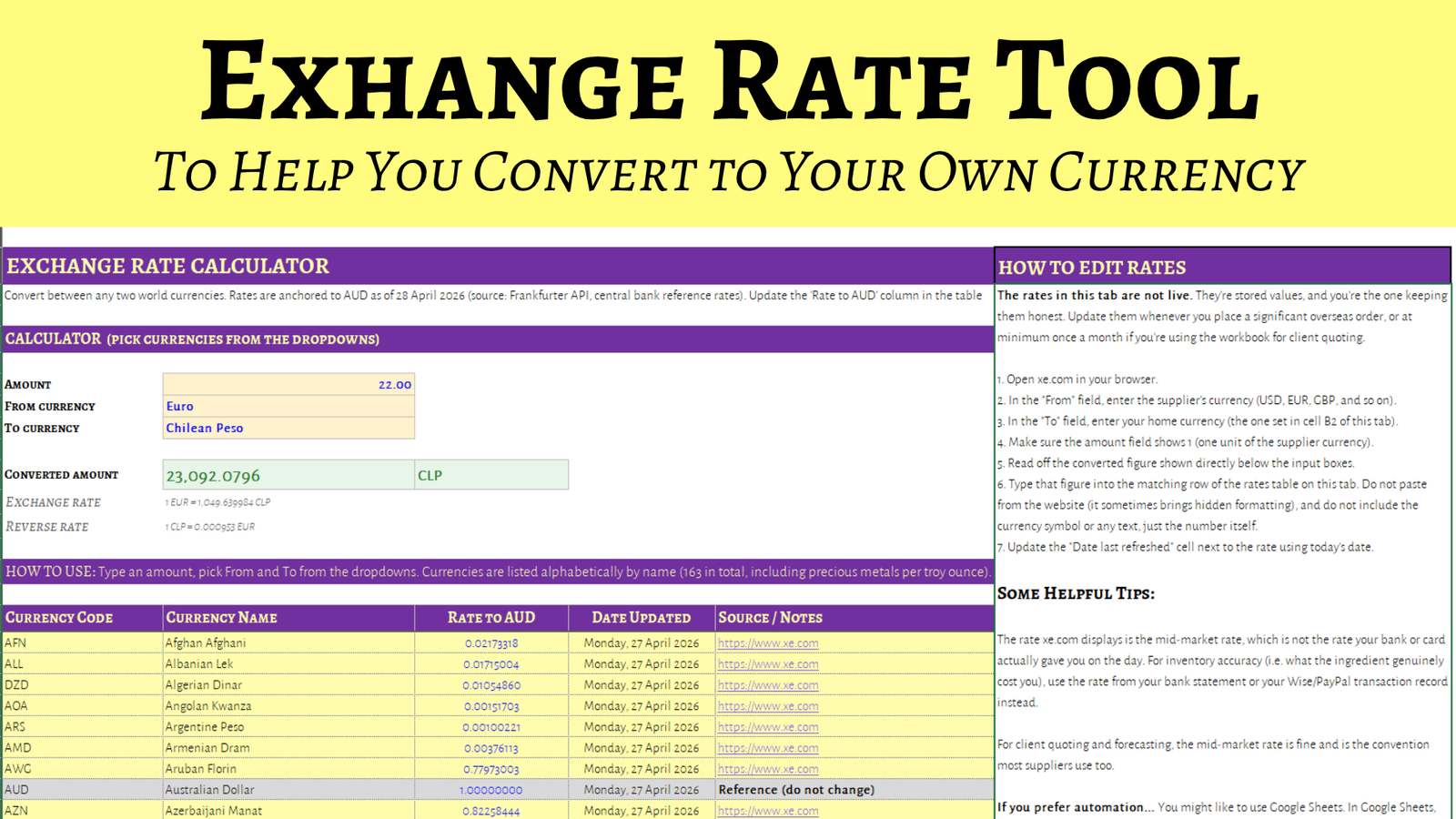
It doesn’t matter what your currency is, you set your currency, but because a lot of us (well here downunder anyway) we are forced to buy ingredients overseas, there is a currency conversion tab for you to convert what you paid into your local currency.

Commercial Cost Calculator
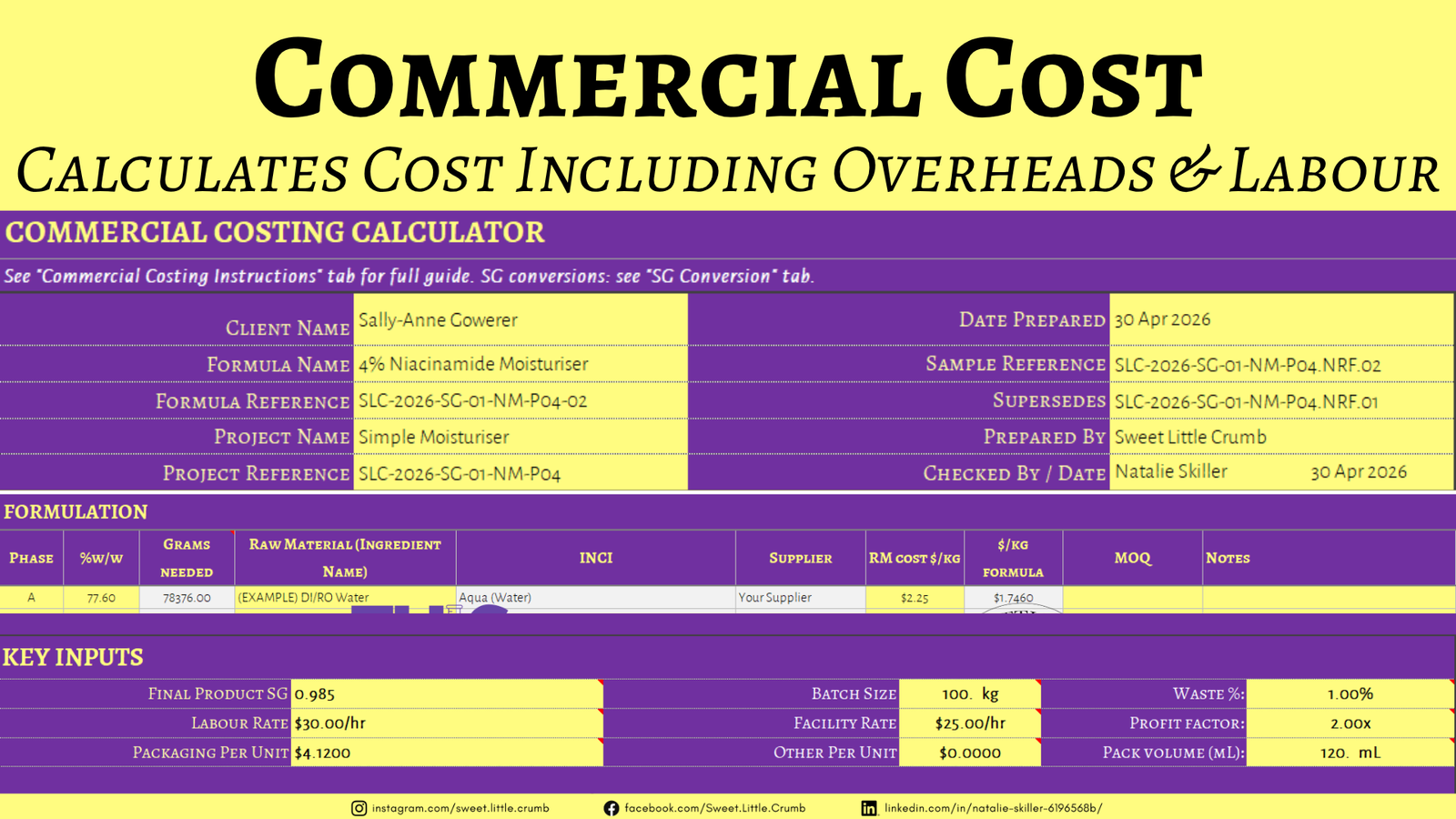
Raw-material cost is only ever half the picture, and pretending otherwise is the reason so many small brands look profitable on a spreadsheet but actually aren’t. This tab takes your formula cost and adds the things that turn a formulation into a sellable product: labour (at whatever hourly rate you’re actually worth, please be generous with yourself), facility overhead (electricity, water, rent, insurance, all the unglamorous bits), packaging (jar, lid, label, carton, secondary packaging if you use it), and a profit factor you set yourself. It outputs a per-unit cost of goods, a recommended wholesale price, and a recommended RRP (with the maths shown, because, well, pricing tools have always made me nervous, and I assume they make you nervous too).


Ingredient Inventory Tab
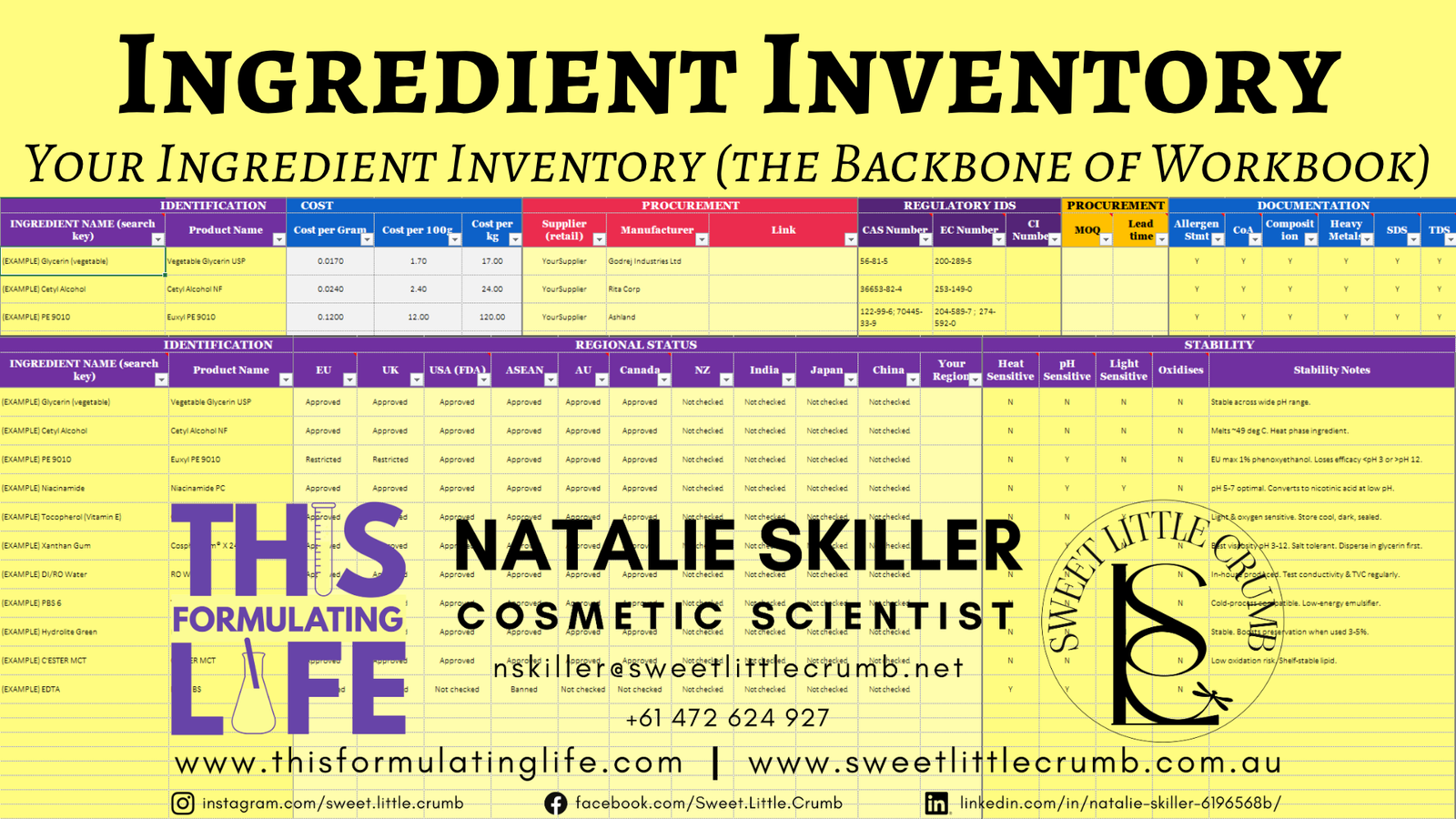
The inventory is the spine that holds the whole thing upright. It is the most important tab/sheet in the workbook. Each ingredient gets a single record (trade name, INCI, category, function, supplier, manufacturer, purchase cost, pack size, cost-per-gram, cost-per-100g, cost-per-kilo, supplier link, and a free-text notes field for the things you’ll definitely forget otherwise), and that record feeds both calculator tabs through structured references (so when your supplier nudges the price up by 14% in February, you update one cell and every formula you’ve ever costed reflects the new number automatically). You can sort by category, filter by function, and tag regional regulatory status from the dropdowns baked into the Reference Lists tab.

Other Tabs/Sheets
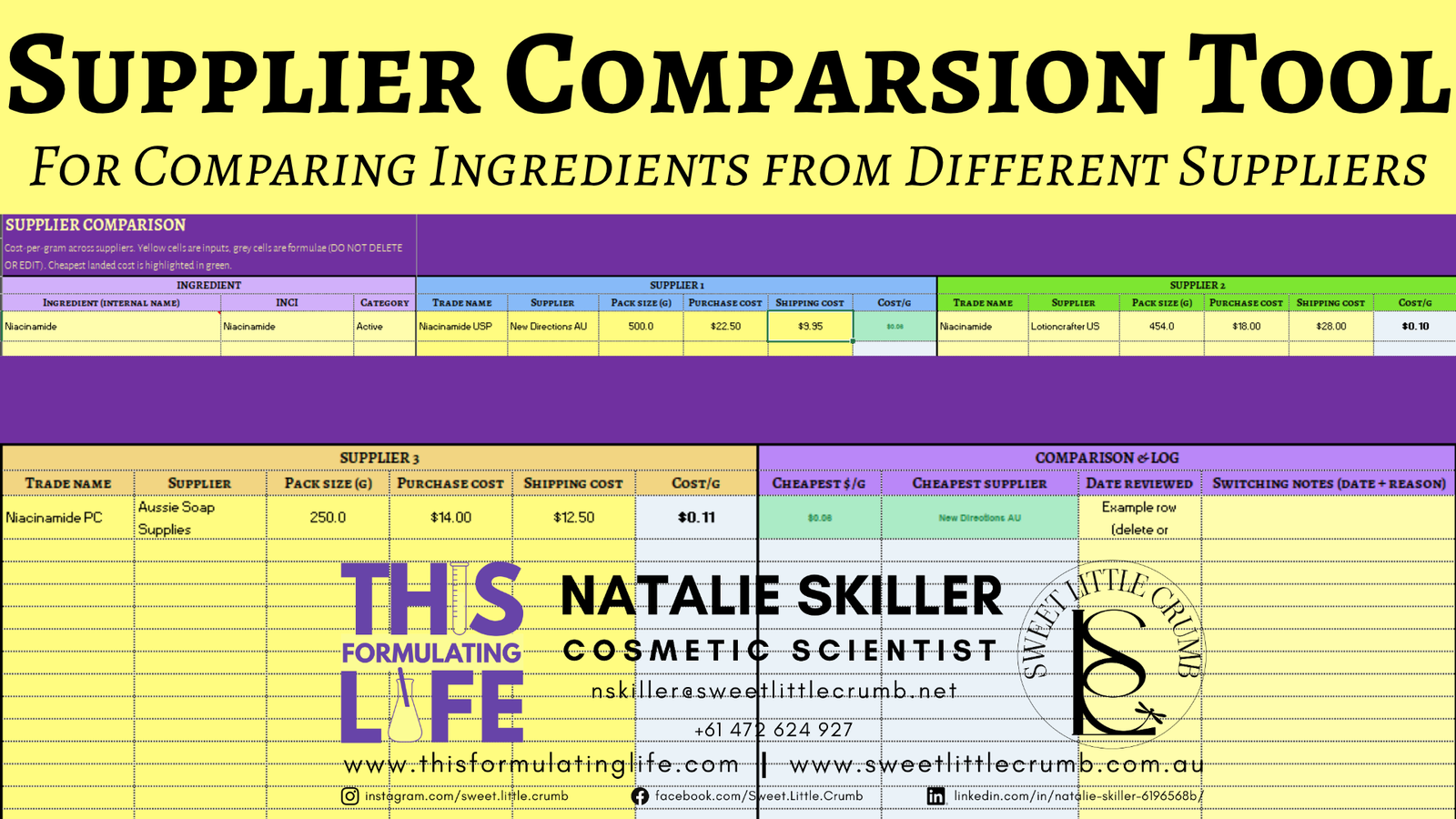
There are a few other helpful tabs in the workbook including a Supplier Comparison Tab so you can compare the same product from different manufacturers or suppliers (as things like cetearyl alcohol can vary dramatically between suppliers).
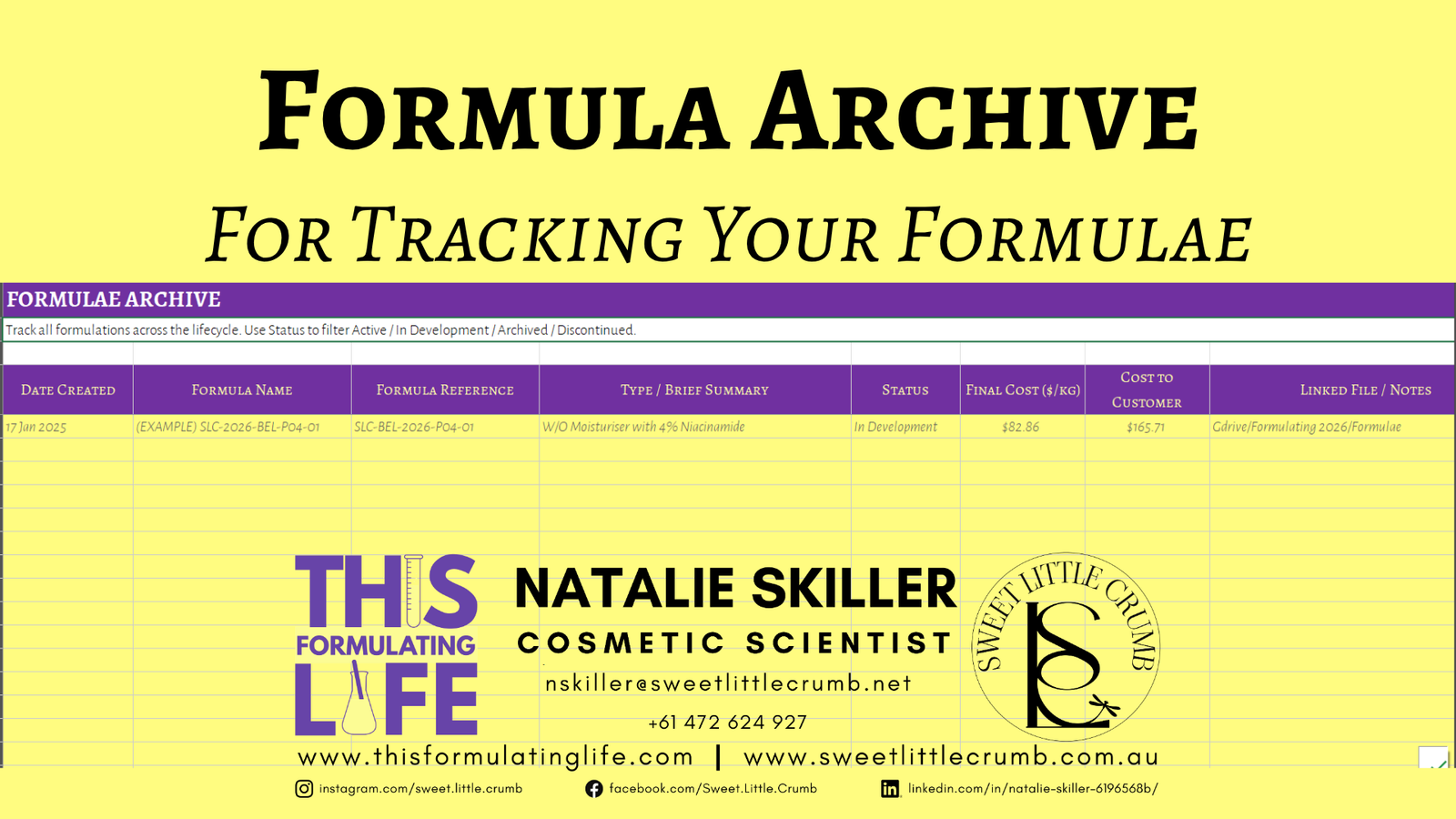
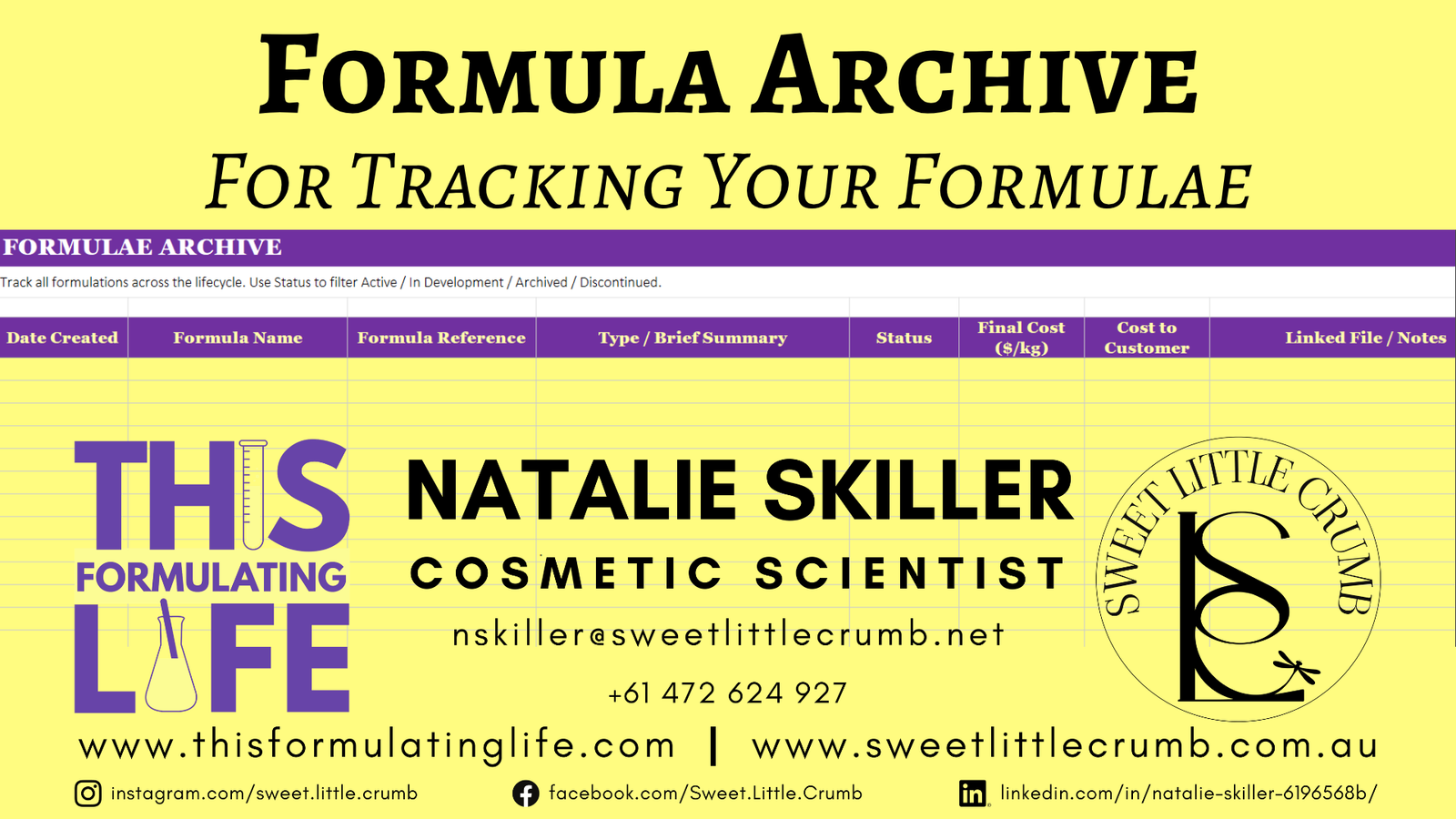
The Formulae Archive Tab. Once a formula is finalised (or finalised-ish, because nothing in formulating is ever truly finished, well for me it isn’t), it earns its way out of the Formula Calculator and into the Archive. The Archive holds version history, batch notes, status (in development, on hold, in production, discontinued), client reference if applicable, regulatory market, and a cost snapshot taken at the date of archiving (so you can see how the same formula has drifted in cost over time as supplier prices have shifted).

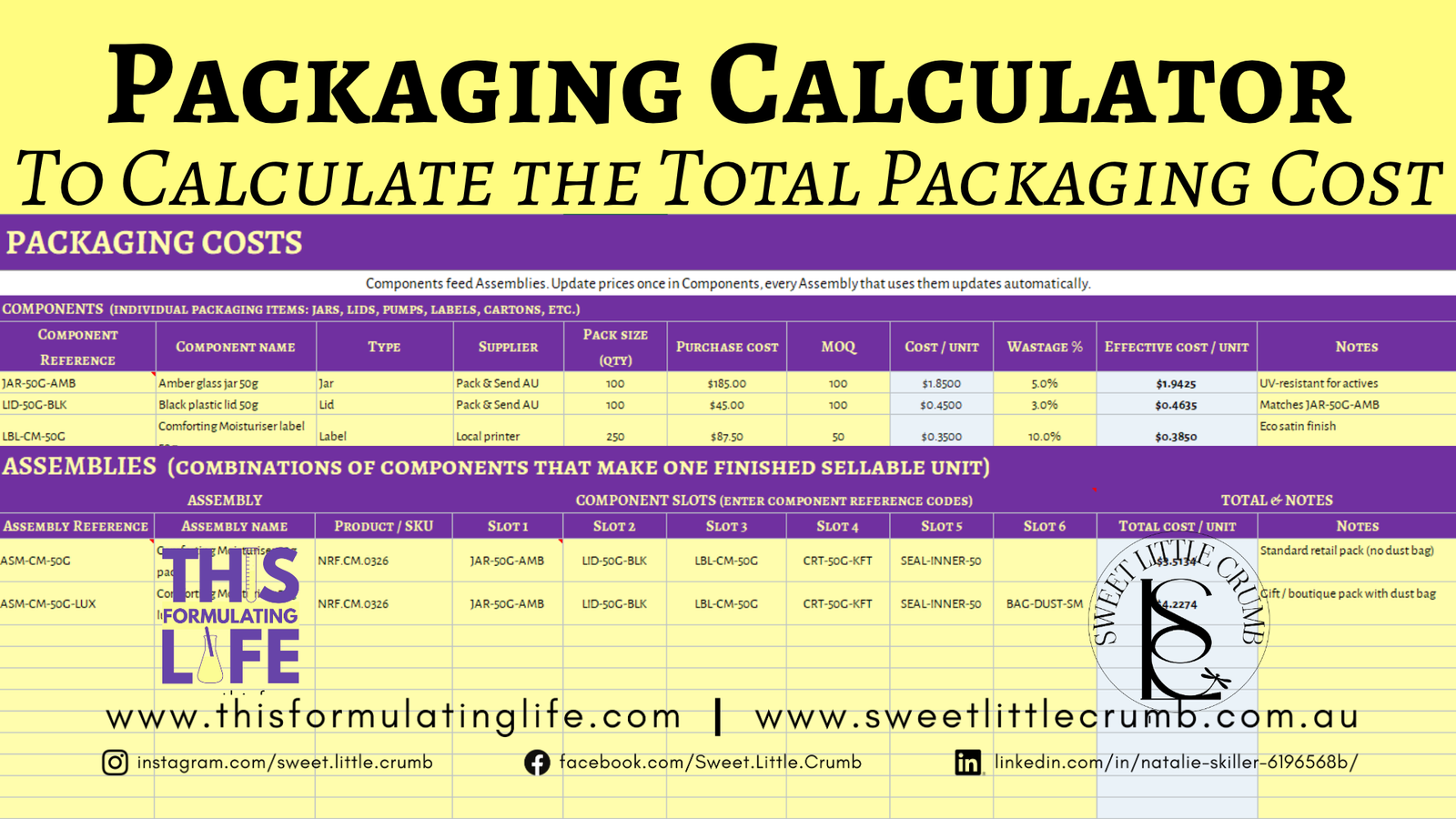
The Packaging Cost Tab is a tool to help you calculate the total cost of the packaging because most packaging comes as components (e.g. label, lid, jar, outer packaging). It is designed for you to fill in a packaging inventory and then with drop down lists to cost the assembly of the package. You can then use this number in your Commercial Cost Calculator to ensure your packaging costs are correctly listed.

Supplier Comparison Tab a simple comparison tool so you can compare the same ingredient purchased from different suppliers. A helpful tool when looking at costs.

There’s also a small SG Conversion Tool tucked in (because half the time your supplier sells you something in $/L and you need it in $/kg, and doing that conversion in your head while also trying to remember whether you added the preservative is not something we as formulators excel at generally).


And because I am a weirdo who hates having to get out of excel to check things on Google there’s also a an Exchange Rate Tab that lets you keep your inventory in one home currency (AUD is default, but it works for any base currency) while still entering supplier invoices in whatever currency they actually sent them in. The tab holds a rates table that you update manually (because no spreadsheet does genuinely live FX without either a paid add-in or a Google Sheets trick that breaks every six months), and the rest of the workbook references those rates whenever an inventory record is flagged with a non-home currency.

It’s built in Excel (.xlsx), works anywhere you can open a .xlsx file, with the caveats below:
Works Fully (Everything Calculates, Drop-Downs Work, Formatting Holds):
- Microsoft Excel for Windows (2016 onwards, and any 365 subscription)
- Microsoft Excel for Mac (2016 onwards, and any 365 subscription)
- Microsoft Excel for the web (the free browser version at office.com)
- Microsoft Excel mobile apps (iOS and Android, though editing on a phone is character-building experience rather than an enjoyable one, and I would not wish it on anyone trying to enter forty packaging components)
Works Well With MINOR Differences:
- LibreOffice Calc (free, cross-platform). All formulas, drop-downs, conditional formatting, and number formatting work correctly. The font may render slightly differently if Alegreya Sans / Alegreya SC is not installed on the system, but the workbook is fully functional. I have tested it in LibreOffice Calc, so know it works.
- Apple Numbers (Mac and iPad). It will open the file and most things will display, but Numbers handles complex multi-cell formulas and conditional formatting in its own slightly idiosyncratic way, and the some of the automatic highlighting cells may not survive the conversion cleanly. Workable as a viewer, not ideal as your primary editor. I don’t own a MAC or iPad and cannot check what happens in the Apple system.
- WPS Office and OnlyOffice (free Excel-compatible suites). Both should handle this workbook fine, though I have not personally tested this specific file in either.
Works With One Small Known Issue:
- Google Sheets. The file will import (File → Import → Upload), and the basic formulas all work, but two things behave differently: the conditional formatting rules sometimes need to be re-applied after import (Sheets uses a slightly different rule engine), and the data validation drop-downs in the Assemblies section may need to be recreated using Sheets’ own Data Validation tool. The IFERROR / VLOOKUP / MIN logic all translates cleanly.
If you mostly live in Google Sheets, let me know and I can email you the Google Sheets Version after you have purchased.
IT WILL NOT WORK ON…
- Anything older than Excel 2007 (the .xlsx format itself did not exist before then).
- Plain text editors, obviously, but I mention it because someone always asks.
What You Need On Your Computer/Laptop/Device:
Nothing extra. No add-ins, no macros, no plugins, no internet connection (the workbook does not call any external services). It is a self-contained .xlsx file that does its work locally, which also means your formula data and supplier pricing never leave your computer (worth knowing if you ever need to reassure a client about confidentiality).
You can Find the Instruction Video on YouTube: https://youtu.be/7tehskC4abg



Reviews
There are no reviews yet.